
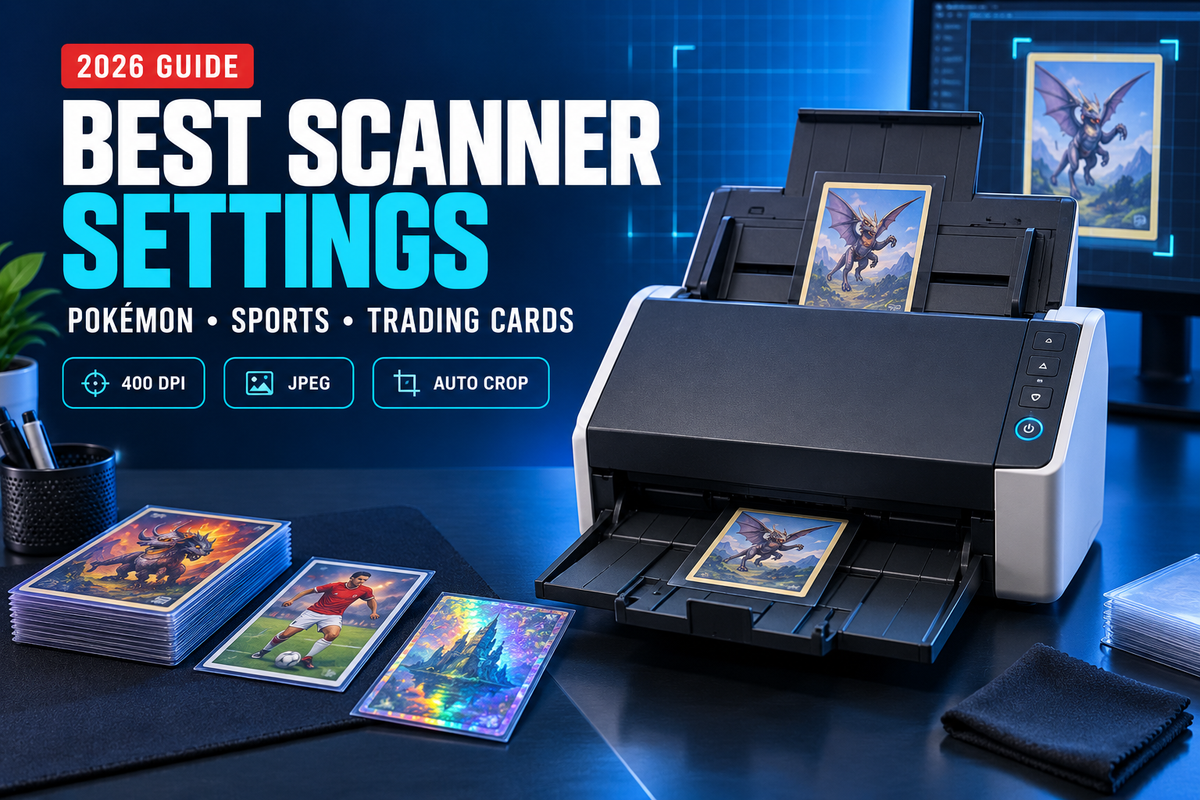
Best Scanner Settings for Pokémon, Sports & Trading Cards (2026 Complete Guide)
Buying the right scanner is only half the job. The settings you use can have just as much impact on image quality, card recognition and workflow speed.
This guide explains practical scanner settings for Pokémon cards, sports cards and other TCG inventory, with a particular focus on the Ricoh fi-8170 and PaperStream Capture.
New to trading card scanners? Start with our Best Scanner for Pokémon, Sports & Trading Cards in Australia guide for the complete buying overview before optimising your scanner settings.
The Short Answer: Our Recommended Starting Point
Recommended General Trading Card Profile
| Image Mode | Color |
| Scan Source | Feeder - Both Sides |
| Resolution | 400 dpi |
| File Format | JPEG |
| JPEG Compression | Level 4 |
| Cropping | Automatic Size |
| Margin | 2 mm |
| Blank Page Detection | Off |
This provides a strong general-purpose starting point for most raw trading cards using the Ricoh fi-8170 and PaperStream Capture.
Why Scanner Settings Matter
A scanner such as the Ricoh fi-8170 is capable of producing consistent front-and-back images at commercial speed.
But simply choosing the highest possible resolution does not automatically create the best trading card workflow.
Resolution, colour adjustment, cropping and compression all affect:
- Fine text and edge visibility
- Card identification accuracy
- Image consistency
- Upload speed
- Storage requirements
- Processing speed
- How accurately buyers can inspect card condition
If you are still deciding whether the fi-8170 itself is the right platform, our fi-7160 vs fi-8170 comparison explains what the newer model adds over the previous generation.
200 dpi vs 300 dpi vs 400 dpi vs 600 dpi
One of the most common questions is:
Should I scan trading cards at 300 dpi or 600 dpi?
The answer is that resolution should match the purpose of the image.
| Resolution | Best Use | Our View |
|---|---|---|
| 200 dpi | Fast basic capture | Usable, but not our first choice for card listings |
| 300 dpi | General online listing | Good balance of quality and speed |
| 400 dpi | Professional card workflow | Recommended starting point |
| 600 dpi | Detailed archival or closer inspection | Useful when detail matters more than throughput |

Why We Would Start at 400 dpi
For most professional trading card sellers, 400 dpi offers a sensible middle ground:
- Enough resolution to preserve small card text and border details
- More detail than a basic 300 dpi workflow
- Smaller files and lighter processing requirements than 600 dpi
- A strong balance between quality and workflow efficiency
That does not mean 400 dpi is perfect for every card. It is simply a strong starting profile for a modern fi-8170 trading card workflow.
Colour Mode: Use Full Colour for Most Cards
Trading cards are highly visual products. Colour, foil effects, borders, set symbols and printed details often contribute to identification and perceived condition.
Recommended general setting: Image Mode = Color
For ordinary Pokémon, sports card and TCG listings, full colour is the logical default.
JPEG vs TIFF: Which Is Better?
A common misconception is that a professional workflow must always use TIFF because it is lossless.
For everyday online trading card inventory, that is usually unnecessary.
| Format | Advantages | Best For |
|---|---|---|
| JPEG | Smaller file size, faster uploads, broad compatibility | Online listings and inventory |
| TIFF | Lossless image storage | Specialist archival workflows |
OZ Toner recommendation: Use JPEG for everyday selling and inventory workflows. Consider TIFF only when you have a specific archival requirement.
Automatic Cropping: One of the Most Important Settings
A good card image should show the full card, including all four edges and corners.
A useful starting point is Automatic Size cropping with around a 2 mm margin. If edges are being clipped, increasing the margin slightly can help.

Blank Page Detection: Keep It Off
For office document scanning, blank-page removal can be useful.
Trading-card scanning is different because both sides belong to the item record.
Recommended: Blank Page Detection = Off
Multifeed Detection: Trading Cards Are Different from Paper
Commercial scanners use multifeed detection to identify multiple sheets entering the feeder together.
Trading cards, sleeves and top loaders behave differently from standard office paper, so a card workflow may require different feeder settings.
Important: Test your own cards and sleeves using low-value stock before processing valuable inventory.
Special Settings for Chrome and Holo Cards
Chrome and holographic cards deserve their own profile because reflective finishes can scan darker than expected or lose highlight detail.
A useful separate Chrome / Holo profile may include:
| Color Adjustment | Prioritize Contrast |
| Tone Adjustment | Custom |
| Brightness | 115 |
| Contrast | 50 |
| Shadow | 0 |
| Highlight | 160 |
| Gamma | 1.00 |

Three Practical Scanner Profiles
Profile A - Everyday Seller
- Color
- 400 dpi
- JPEG
- Compression Level 4
- Automatic Crop
- 2 mm Margin
- Blank Page Detection Off
Best for the majority of Pokémon, sports cards and standard TCG inventory.
Profile B - Chrome / Holo
- Color
- 400 dpi
- JPEG
- Prioritize Contrast
- Custom tone adjustment
- Preview one card before running a batch
Best for reflective Chrome, Holo and foil-style cards.
Profile C - Detail / Archive
- Color
- 600 dpi
- JPEG High Quality or TIFF depending on archival requirements
- Manual quality review
Best where preserving maximum available scanner detail matters more than throughput or storage efficiency.
Note: Profile C is an OZ Toner editorial recommendation rather than a universal preset.
A Simple Trading Card Scanning Workflow
- Sort cards
- Select profile
- Scan front and back
- Review images
- Import and list
Common Scanner Setting Mistakes
Myth 1: Higher DPI Is Always Better
Not necessarily. Higher resolution increases image data and processing requirements. Use the resolution appropriate to the job rather than automatically selecting the maximum.
Myth 2: TIFF Is Always More Professional
TIFF is excellent for lossless archival storage, but JPEG is far more practical for everyday online listing workflows.
Myth 3: One Profile Works for Every Card
Reflective Chrome and Holo cards can behave very differently under scanner illumination. Creating a dedicated profile can produce more consistent results.
Myth 4: Image Problems Mean the Scanner Is Faulty
Not always. Incorrect cropping, wrong orientation, inappropriate brightness settings and dirty scanner glass can all create disappointing results.
Troubleshooting
Cards Look Too Dark
For Chrome or Holo cards, try a dedicated profile and adjust brightness gradually while previewing the result.
Edges Are Being Cropped
Increase the PaperStream margin slightly, for example from 2 mm to around 3 mm.
Cards Are Rotated Incorrectly
Confirm physical card orientation and the rotation settings within your scanning profile.
Scanner Pulls More Than One Card
Reduce the stack size, make sure cards are flat and check whether static or sleeves are causing cards to stick together.
Scans Have Lines
Inspect and clean the scanner glass and transport path. A small speck of dirt can create a streak across every image.
What If the Card Is Too Valuable for an ADF?
The fi-8170 is designed around a sheet-fed workflow, which means cards physically pass through rollers and guides.
If the goal is to avoid feeder transport altogether for selected rare or delicate cards, a contactless overhead scanner may be more suitable.
Compare the alternatives: read our ScanSnap SV600 vs fi-8170 Trading Card Scanner comparison to see when contactless overhead capture makes more sense than high-speed sheet feeding.
Why the Ricoh fi-8170 Works So Well for This Workflow
The Ricoh fi-8170 combines duplex scanning, commercial-grade feeding and the PaperStream software ecosystem needed to create specialised scanning profiles.
Frequently Asked Questions
What DPI should I use for Pokémon cards?
For a modern fi-8170 workflow, 400 dpi is an excellent starting point.
Is 600 dpi better for trading cards?
It captures more image data, but it is not necessary for every listing. Consider 600 dpi when maximum detail matters more than throughput or file size.
Should I scan trading cards as JPEG or TIFF?
JPEG is the better choice for most online selling and inventory workflows. TIFF makes more sense when lossless archival storage is specifically required.
Should blank page detection be enabled?
For front-and-back card scanning, it is usually better to keep blank page detection off so both sides remain part of the card record.
Why do Holo cards look dark?
Glossy and mirror-like surfaces reflect scanner illumination differently. A dedicated brightness and contrast profile can help compensate.
Can I use these settings on a fi-7160?
Many of the principles are still useful, although exact driver options and behaviour can vary. If you already own a fi-7160, our detailed fi-7160 vs fi-8170 comparison can help you decide whether an upgrade is actually necessary.
Final Recommendation
OZ Toner Recommended Starting Profile
Color + Duplex + 400 dpi + JPEG + Automatic Crop + 2 mm Margin.
Then create a second profile specifically for Chrome and Holo cards rather than constantly changing one general-purpose setup.
The best scanner settings are not necessarily those that create the largest image file.
They are the settings that produce consistent images while keeping the workflow fast, repeatable and manageable.
Continue the OZ Toner Trading Card Scanner Series
01. Complete Buying Guide
Best Scanner for Pokémon, Sports & Trading Cards in Australia
02. fi-7160 vs fi-8170
Is upgrading from the fi-7160 to fi-8170 really worth it?
03. Best Scanner Settings
You are currently reading our scanner settings and image-quality guide.
04. ScanSnap SV600 vs fi-8170
Compare high-speed sheet-fed scanning with contactless overhead scanning
Build a Better Trading Card Scanning Workflow
OZ Toner supplies professional Ricoh and Fujitsu scanners across Australia and is developing dedicated solutions for Pokémon, sports card and TCG sellers.
Shop Ricoh fi-8170 | Browse Ricoh / Fujitsu Scanners
Reference Guidance
The scanner settings and Chrome / Holo concepts discussed in this article are based on current specialist trading-card scanning guidance and OZ Toner editorial analysis. OZ Toner-created graphics are illustrative summaries and do not represent independent laboratory testing.
Scanner software, third-party application compatibility and recommended settings can change over time. Always verify current requirements and test your workflow with low-value cards before processing valuable collectibles.